Transparent Capture: Intercept Traffic With No Proxy Configuration
Capturing an application's HTTP traffic usually starts with pointing it at a proxy: enabling the system proxy, setting HTTP_PROXY, changing a browser setting, or wiring up an SDK. This works for applications that read those settings, but many do not. Some ignore the system proxy, some ship their own network stack, some hard-code their endpoints, and some expose no proxy setting at all. Each of these is a gap in what you can observe.
Transparent capture removes the proxy step. When it is enabled, Fluxzy records the traffic of every application on the machine, including browsers, command-line tools, desktop applications, and background services, without changing any proxy setting. Applications run unmodified and are captured as they are.
A proxyless approach
The difference between classic mode and transparent capture is where interception happens. A traditional proxy asks each application to send its traffic to a specific address. A transparent proxy works one layer lower, at the operating system's network routing, so applications do not need to know a proxy exists.
In practice this means:
- No system proxy to toggle, no environment variables to set, and no per-application configuration.
- Applications that ignore proxy settings or pin their own configuration are captured like any other. There is no proxyless blind spot to work around.
- Capture is global by default, and can then be narrowed to a specific process or set of hostnames.
Once traffic reaches Fluxzy, everything works as it does in classic proxy mode: live inspection, HTTPS decryption, search, filtering, request and response editing, replay, and export. Transparent capture also runs on Windows, Linux, and macOS, each using its own native networking facilities under the hood while the capture experience stays the same.
Enabling transparent capture
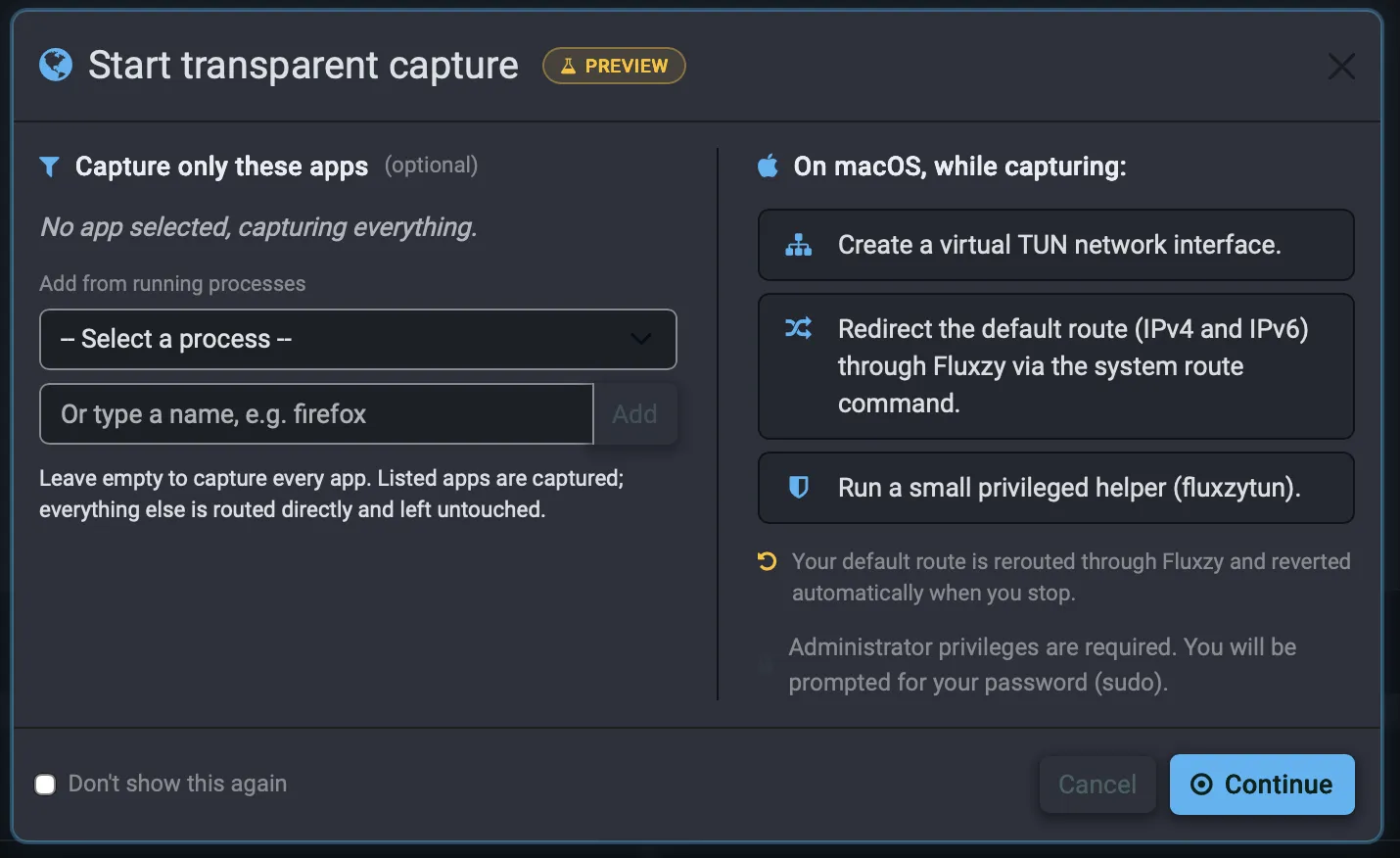
Transparent capture is selected when you start a capture. The same dialog lets you capture the whole machine or narrow the capture to specific applications.
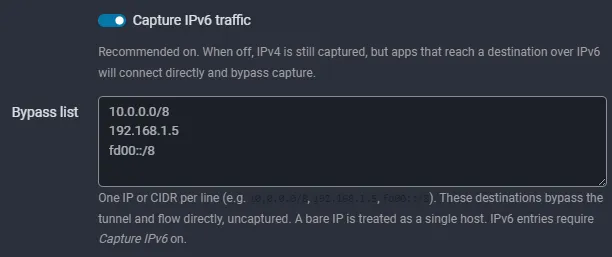
Its behavior is configured in Global Settings, under the transparent proxy section.
Capture only the apps you care about
Transparent capture is global by default, but it does not have to be. The start dialog includes an optional Capture only these apps panel: pick a program from the list of running processes, or type its name (for example firefox), and add it. Leave the list empty to capture everything; add one or more processes and Fluxzy captures only those. Everything else on the machine is routed directly and left untouched.
Because the filter keys on the process itself rather than on a proxy setting the application has to honor, it works even when the application has no proxy support at all.
This turns a handful of awkward debugging situations into routine ones:
- Debug an app that makes backend calls without altering the app. Desktop clients, Electron apps, games, and device emulators often reach their backends over their own network stack and ignore the system proxy. Add the process to the list and you see its API calls, decrypted, with no SDK to embed, no environment variable to set, and no change to the app itself.
- Inspect a CLI tool, script, or SDK. Command-line tools and scripts that don't read
HTTP_PROXY, or that bundle their own TLS stack, are captured by naming their process (for example apython,node, ordotnetprocess). This is a quick way to see exactly what an undocumented or third-party API a tool calls. - Cut the noise on a busy machine. A global capture also records OS telemetry, update checkers, and every background service. Narrowing to a single process keeps the session focused on the traffic you actually care about.
- Leave the rest of the machine alone. Only the listed processes are routed through Fluxzy; the connections you depend on — VPN, conferencing, other work — keep flowing directly. That makes it safe to capture one application on a workstation you are actively using.
- Follow service-to-service traffic. A background daemon or local service talking to internal APIs can be captured by selecting its process, without rerouting unrelated traffic.
How it works
Instead of asking each application to use a proxy, Fluxzy intercepts traffic at the operating system's network routing layer:
- Fluxzy brings up a temporary virtual network adapter and asks the OS to route outbound traffic through it.
- Captured packets are passed to the same Fluxzy engine used in classic proxy mode, which records, decrypts, inspects, alters, and replays them.
- Responses travel back to the original application over the same path.
The application sees a normal network connection.
Safe by design
Rerouting a machine's network is a significant operation, and transparent capture is built to handle it carefully:
- The network changes apply only while a capture is running. Stopping the capture, or closing the application, restores networking automatically.
- The redirection is designed to recover connectivity on its own even if the application is force-closed, so it does not strand the connection.
- Setting up the virtual adapter requires elevated rights, so Fluxzy uses a small, dedicated privileged helper for that step while the main application keeps running unprivileged. A summary of the changes and a single authorization prompt are shown before anything is applied.
The interception engine, the part that records, decrypts, and replays traffic, is Fluxzy.Core, which is open source. It is the same engine used in classic proxy mode; transparent capture changes how traffic reaches the engine, not what happens once it arrives.
Transparent capture is currently in preview. Behavior and platform support continue to evolve, and feedback is welcome.